RSTool Installation Guide
RSTool can be installed directly through Rhino's built-in package manager.
Install with PackageManager
- Open Rhino, enter
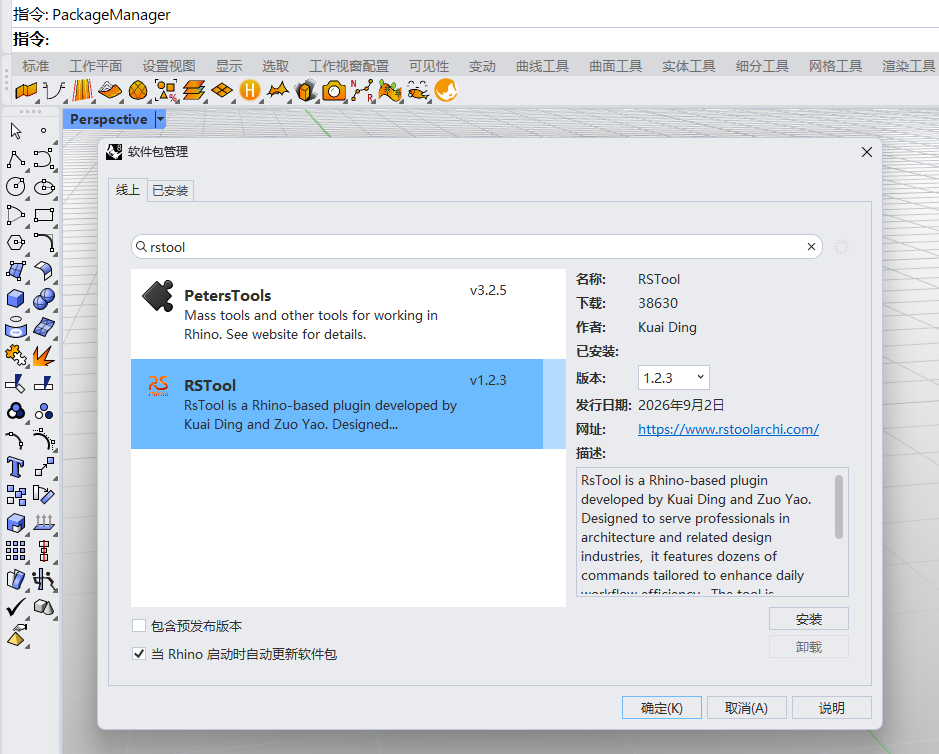
PackageManageron the command line, and press Enter. - Search for
rstoolon the Online tab of the Package Manager. - Select RSTool, choose the version you want, and click Install. Save your work and restart Rhino if prompted.
If RSTool does not appear in search
First confirm that Rhino can access the internet and that Package Manager is on the Online tab. If no result appears, check whether a Windows Firewall outbound rule is blocking Rhino:
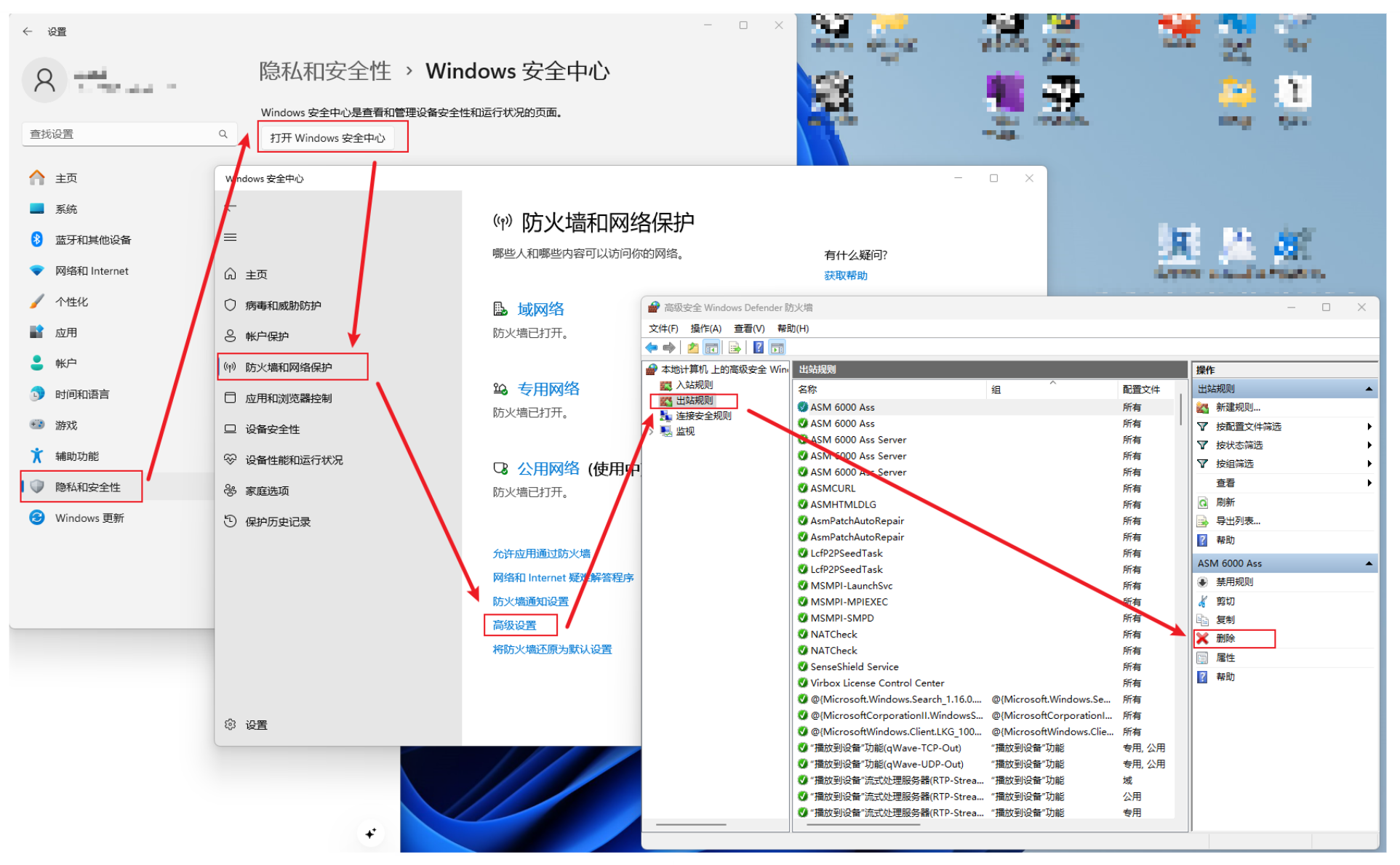
- Open Settings → Privacy & security → Windows Security → Firewall & network protection → Advanced settings.
- Select Outbound Rules in Windows Defender Firewall with Advanced Security.
- Look for a rule whose name contains Rhino and whose action is explicitly Block the connection. Record or export the rule first, then disable or remove only that blocking rule and search again in
PackageManager.
Network and licensing
- Change only rules that explicitly block Rhino; do not disable Windows Firewall as a whole.
- Firewall and proxy settings may affect both package downloads and Rhino license validation. Record the original settings so you can restore them if necessary.
- If you use a proxy or VPN, add Rhino and McNeel website, licensing, and package-service domains to your proxy tool's direct-connect or exclusion list so they do not use the proxy. Do not block licensing servers. See this Zhihu article for a configuration example.